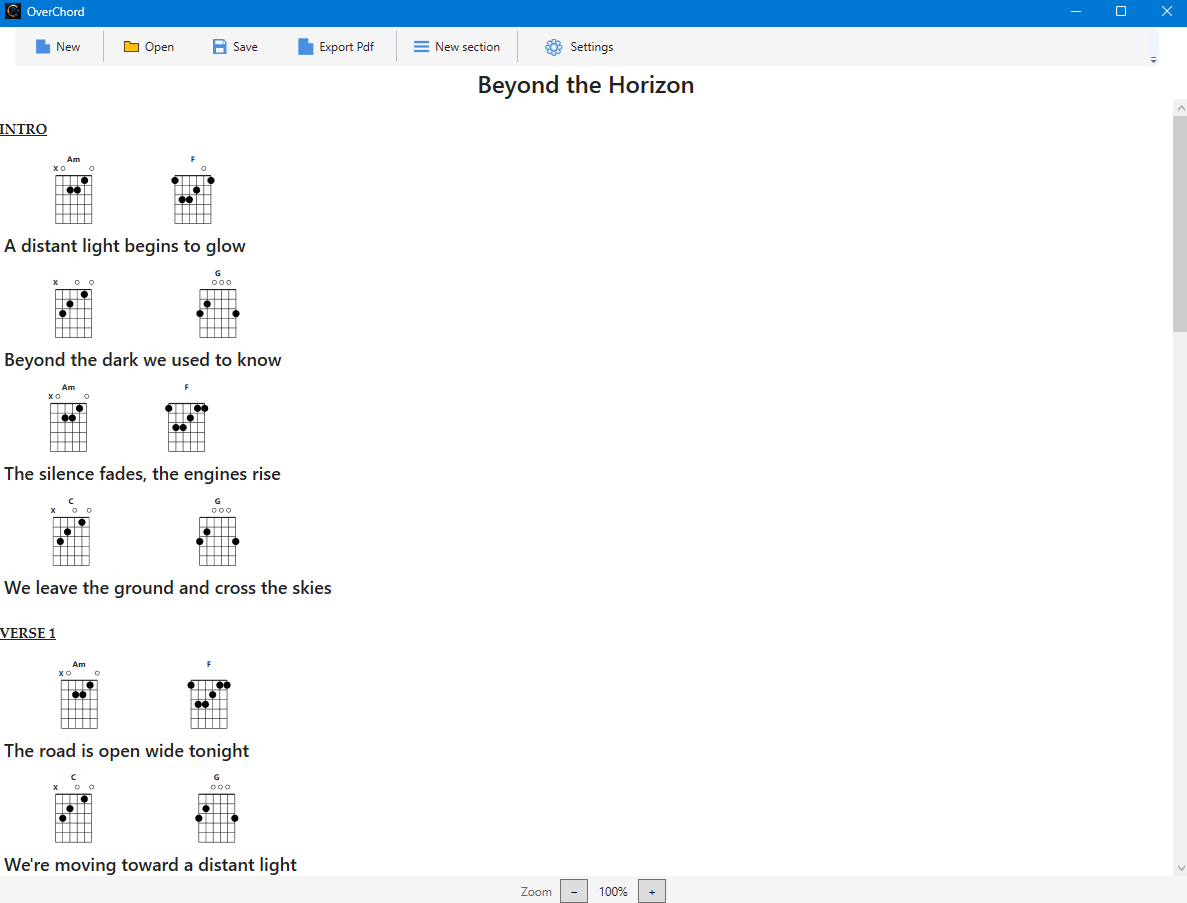
When you start OverChord, you can immediately begin editing a song.
The interface is already ready for editing and displays a default title,
automatically set according to the application language.
To start a new song, you can also use the New button in the toolbar.
The main interface
The main OverChord window includes the following areas:
The main OverChord interface.
Toolbar — contains the main commands, including New, Open, Save,
Export PDF, New Section and Settings.
Song title — displays the title of the song.
Section name — identifies the current section, such as Intro, Verse or Chorus.
Text — contains the lines of the song.
Chords — are displayed above the text at the position where they are played.
Zoom — allows you to increase or decrease the display size.
Editing content
Song elements are managed through the context menu of the element you want to work with.
Song title
The song title can be edited using its context menu.
Sections
Sections can be edited or deleted using their context menu.
Editing the section name does not affect its contents.
Deleting a section also deletes all the text lines and chords contained in it.
Text lines
Each line of the song must be created inside a section.
To add a new line, use the section context menu and select New line.
A line cannot be created outside a section.
A text line can be edited or deleted using its context menu.
Chords
Chords are managed through their context menu.
To insert a new chord, use the text line context menu at the desired position
and select Insert new chord here.
Editing a chord opens the chord editor, while the context menu can also be used to delete it.
When editing the song title, a section name or a text line, the corresponding text box enters editing mode.
Press ENTER to confirm the change.
Press ESC or click outside the text box to cancel the change.
Editing or inserting a chord opens the chord editor.
When you start OverChord, you can immediately begin working on a new song.
You can also create a new song at any time using the New button in the toolbar.
Edit a song
Song contents can be edited directly in the editor using the context menus of the relevant elements.
Save a song
To save a song, use the Save button in the toolbar.
The standard Windows save dialog opens, allowing you to choose the file name and location.
Open an existing song
To open a previously saved song, use the Open button in the toolbar
and select the desired file.
The .ocsong format
OverChord songs are saved using the proprietary .ocsong format.
This is the format proposed automatically by OverChord in the save dialog.
One song at a time
Each OverChord instance manages one song at a time.
It is currently possible to run multiple instances of the application
and work on different songs simultaneously.
Sections represent the different parts that make up a song, such as Intro, Verse, Chorus,
Bridge and so on.
At least one section must be present in order to insert text, because song text is contained within sections.
Create a section
To add a new section, use the New Section button in the toolbar.
The new section is added after the existing sections.
Name a section
When a new section is created, OverChord displays a dialog where the section name can be entered.
Edit or delete a section
To edit a section, use its context menu.
Editing the section name does not affect its contents.
A section can also be deleted from the context menu.
Deleting a section also deletes all the text lines and chords contained in it.
Order sections
Sections cannot currently be reordered.
New sections are always added after the existing sections.
Chords can only be inserted in correspondence with a text line.
To insert a new chord, use the text line context menu at the desired position
and select Insert new chord here.
To modify an existing chord, use its context menu and select Edit.
In both cases, the chord editor opens.
Create a chord
The chord editor displays a guitar diagram with 6 strings and 5 frets.
Click the intersection of a string and fret to place a note.
A black dot is displayed at the selected position.
To indicate an unplayed string, click the nut of the corresponding string.
Repeated clicks alternate between X for an unplayed string
and O for an open string.
Chord name
The chord name is entered in the dedicated text box in the chord editor.
Base fret
The editor allows you to specify the base fret from which the diagram starts.
For example, entering 5 means that the diagram starts from the fifth fret.
Chord position
The chord is inserted at the selected position in the text.
It is displayed in correspondence with the letter of the text where it was positioned.
Edit a chord
To edit an existing chord, use its context menu and select Edit.
The chord editor opens with the settings of the selected chord.
Delete a chord
To delete a chord, use its context menu and select Delete.
Chord display
Chords are always displayed above their corresponding text line.
In the editor, a text line never wraps.
When exporting to PDF, however, a line can wrap when necessary depending on the available space on the page.
To export a song as a PDF, use the Export PDF button in the toolbar.
After saving, the PDF can be opened with the PDF viewer installed on your computer.
PDF settings
Export settings are available through the Settings button in the toolbar.
Currently, you can configure the page margins and choose whether page numbers are displayed.
View the PDF
After exporting and saving the PDF, you can open it using the PDF viewer normally associated with Windows.
The exported document contains the song chord chart, with chords and text laid out for printing.
Printing
The generated PDF can be printed using the standard printing functions of the PDF viewer.
OverChord currently does not allow you to print or export only the chord list separately.